From preset to returned deposit.
What setting up Rentwright involves, and what happens to one booking from the product page to the return.
Setting up
1. Install
Once Rentwright is on the Shopify App Store, you install it from its listing. It is not listed yet.
2. Pick a preset
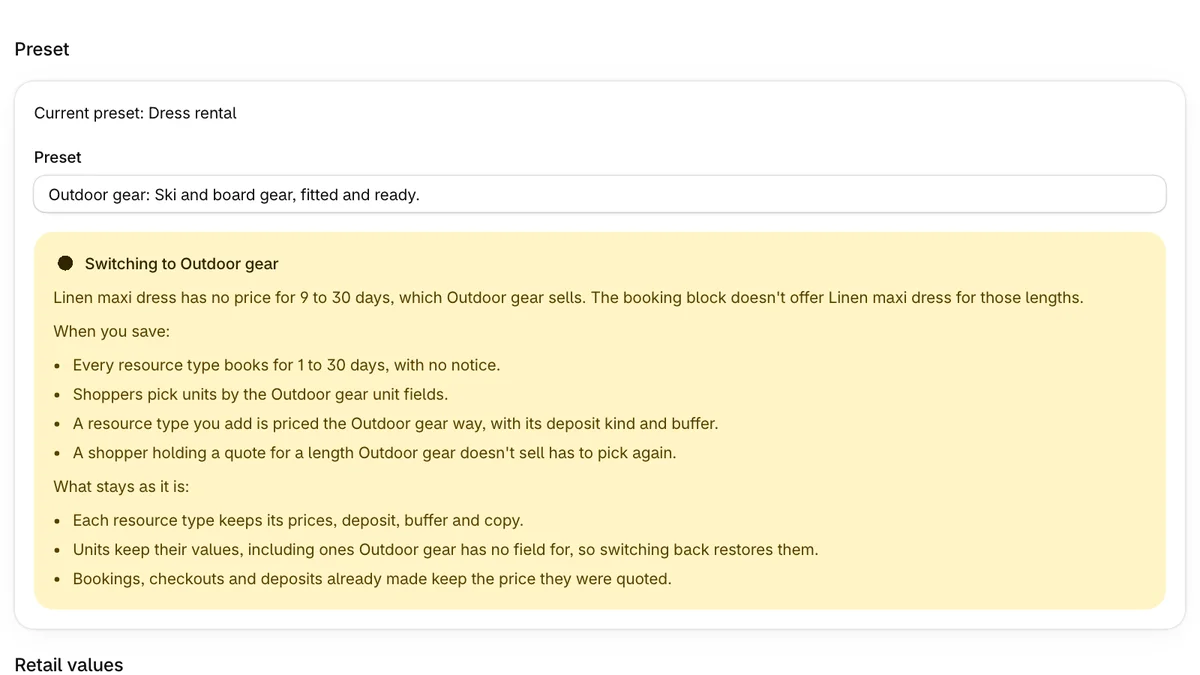
In Settings, pick Dress rental or Outdoor gear. Outdoor gear is the default. Before you save a different preset, Settings says what switches and what stays. What switches: the lengths and notice every resource type books for, the unit fields, and how a new resource type is priced. What stays: each resource type's prices, deposit, buffer and copy, and bookings already made.
3. Add a resource type
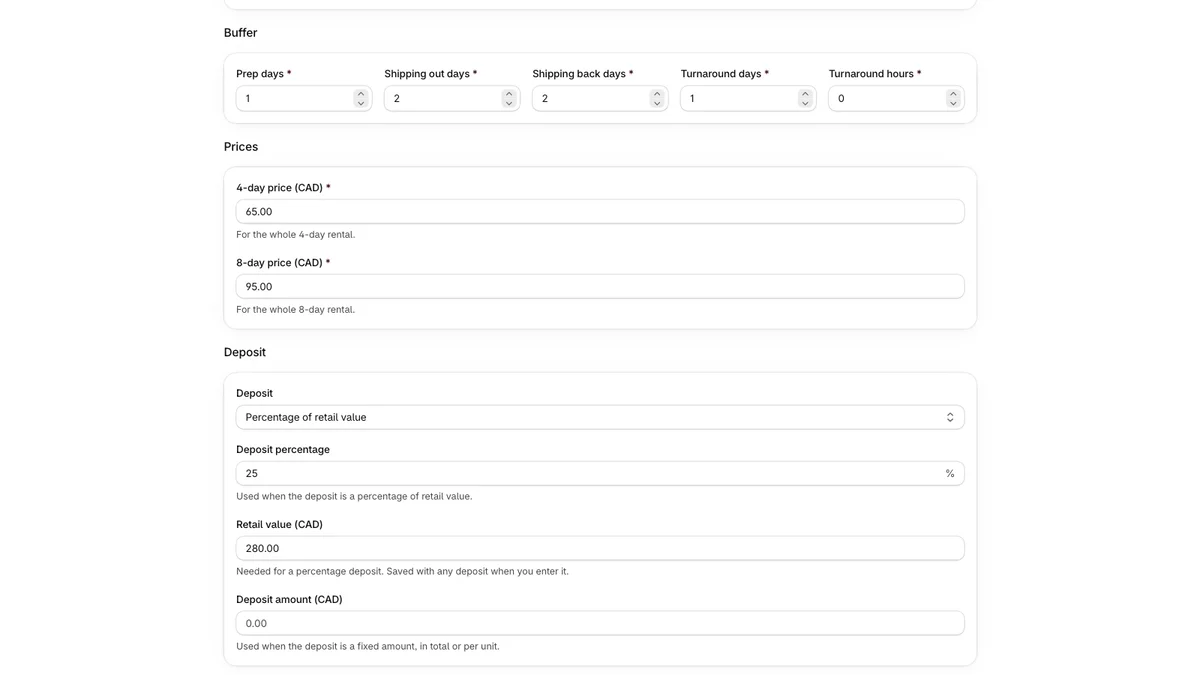
A resource type is one kind of item you rent, such as an evening gown in one style. On its page you set its prices, deposit, buffer and retail value in your shop's currency, and write a tagline, a summary and a terms note for shoppers. A new resource type starts with every amount and that copy empty.
4. Add units
Each physical item is a unit of its resource type, with its own values for the preset's fields, such as size and dress length.
5. Link products
On the resource type's page, the button reads "Link products to" and the type's name. Linking a product tells the booking block on that product which resource type to book. Each linked product has an Unlink button.
6. Put the booking block on the product template
In the theme editor, open the product template your rental products use, choose Add block, then Apps, then Rental booking. Remove the theme's own Add to cart and Buy it now buttons from that template. A product on that template is rented, not sold. Its variant can stay "Inventory not tracked", because availability comes from Rentwright's units and bookings, and a Rentwright checkout never changes Shopify's stock count.
One booking
7. The shopper books
On the product page, the shopper picks a start day, a length the preset sells, and the fields the preset defines. The page shows the rental, the deposit and the total. If nothing matches, it can offer up to three other free combinations or up to three other start dates, and the shopper picks one. The shopper pays on a Shopify checkout opened from the product page (a draft-order invoice), not through the theme cart.
8. Hand it out
The Today page lists today's hand-outs and returns in your shop's time zone. Late collections and overdue returns stay on it. You hand the item out from the booking.
9. Take it back and settle the deposit
The shopper pays the rental and a refundable deposit together. After the return, the merchant either records damage or releases the deposit, and the app refunds whatever the merchant does not keep.
If you refund part of the order by hand in Shopify admin, Rentwright counts it against the deposit first. A later release or capture refunds only what is left. The booking page shows "Refunded in Shopify" next to "Counted against the deposit".
10. Cancel, if you need to
On a confirmed booking, Cancel booking frees the unit and refunds the checkout. A booking that has been handed out can no longer be cancelled.
When the admin refuses
When the admin refuses a value, it shows the reason under the field it concerns and moves focus to that field. A refusal that concerns no single field stays in the banner at the top of the page. If the booking changed in another tab, the admin refuses and asks you to reload the page.
What it does not do yet
The full list is on the home page under "What Rentwright does not do yet".